Getting started with Mowzey
Set up your lawn care business in under 15 minutes.
Welcome to Mowzey! This guide will walk you through everything you need to get your lawn care business up and running. By the end of this tutorial, you'll have your account set up, your first client added, and be ready to start managing your routes efficiently.
Here's what we'll cover:
- Creating your Mowzey account
- Setting up your company profile
- Connecting Stripe for payments
- Creating and optimizing a route
- Configuring payment terms
Create your account
Getting started with Mowzey is quick and easy. Head over to app.mowzey.com/signup and create your account. You'll need to provide:
- Your email address
- A secure password
Pro Tip
Once you've completed the sign-up form, check your email for a verification link. Click it to activate your account and you're ready to move on to the next step.
Set up your company
After logging in for the first time, you'll be guided through setting up your company profile. This information will appear on invoices, client communications, and your public booking page. Have your business banking credentials and your EIN or TIN ready.
Fill in the following details:
- Business name: Your business name as it should appear to clients
- Business email: Your business email address
- Business phone number: Your main business phone number
- Address: The address where you start and end your day
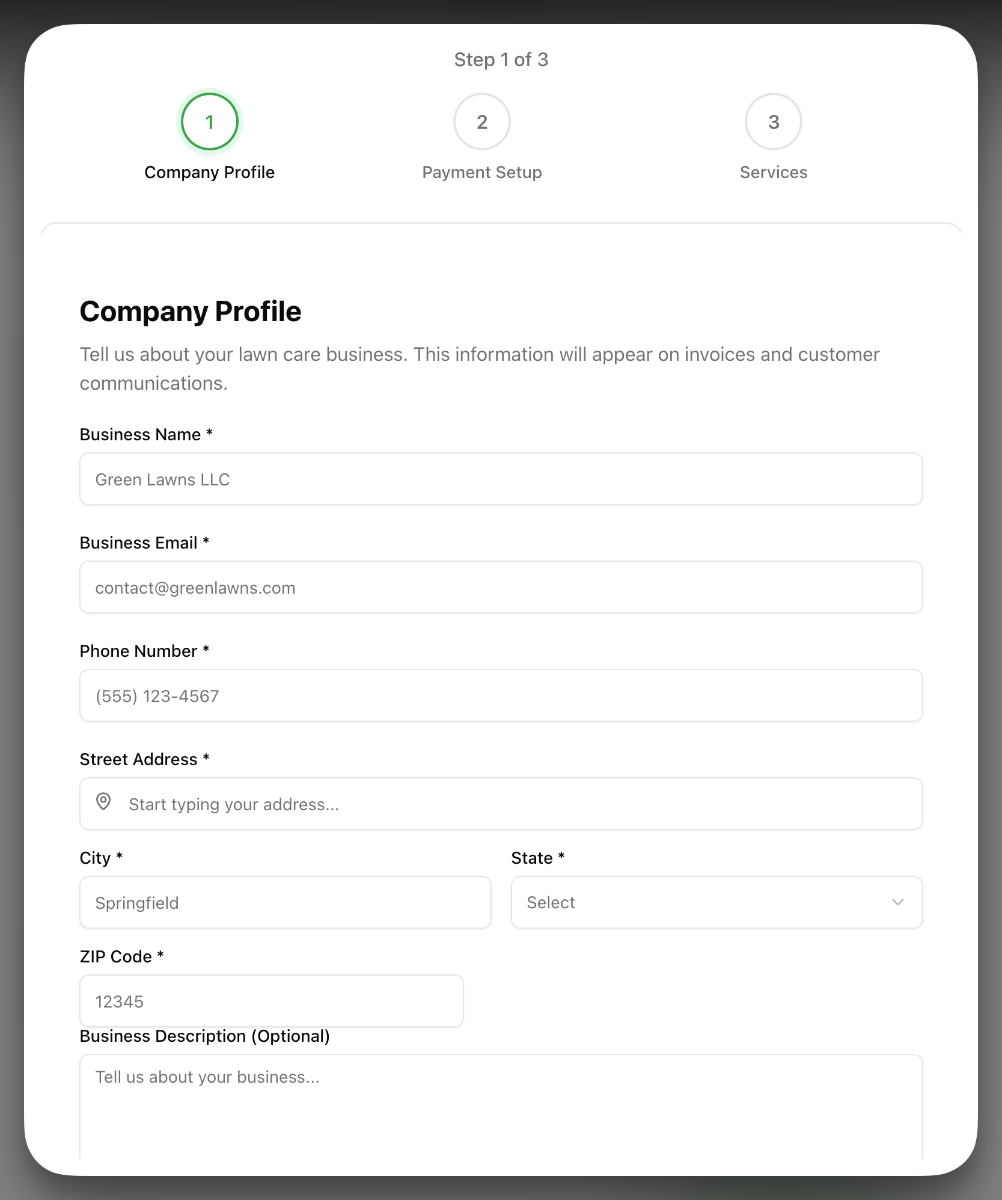
Don't worry if you don't have all the details yet — you can always update this information later from your account settings.
Connect Stripe
Now it's time to connect Mowzey to Stripe and Stripe to your bank account. Mowzey uses Stripe to securely collect payments from your customers and remit those payments to your bank account.
Information you'll need:
- Business name
- Business type (Individual or Company; if Company, select sole proprietorship, LLC, etc.)
- Business address (home address is fine if you operate from home)
- SSN / EIN / TIN — depending on the business type you select, Stripe will ask for your Social Security Number, Employer ID Number, or Tax ID Number.
- Banking credentials — Stripe will ask you to connect your bank account so you can receive payments. This happens securely via Plaid, which requires you to log in to your bank account.
- Your industry (we recommend "Landscaping Services").
- Other information Stripe may request — please complete as much as possible.
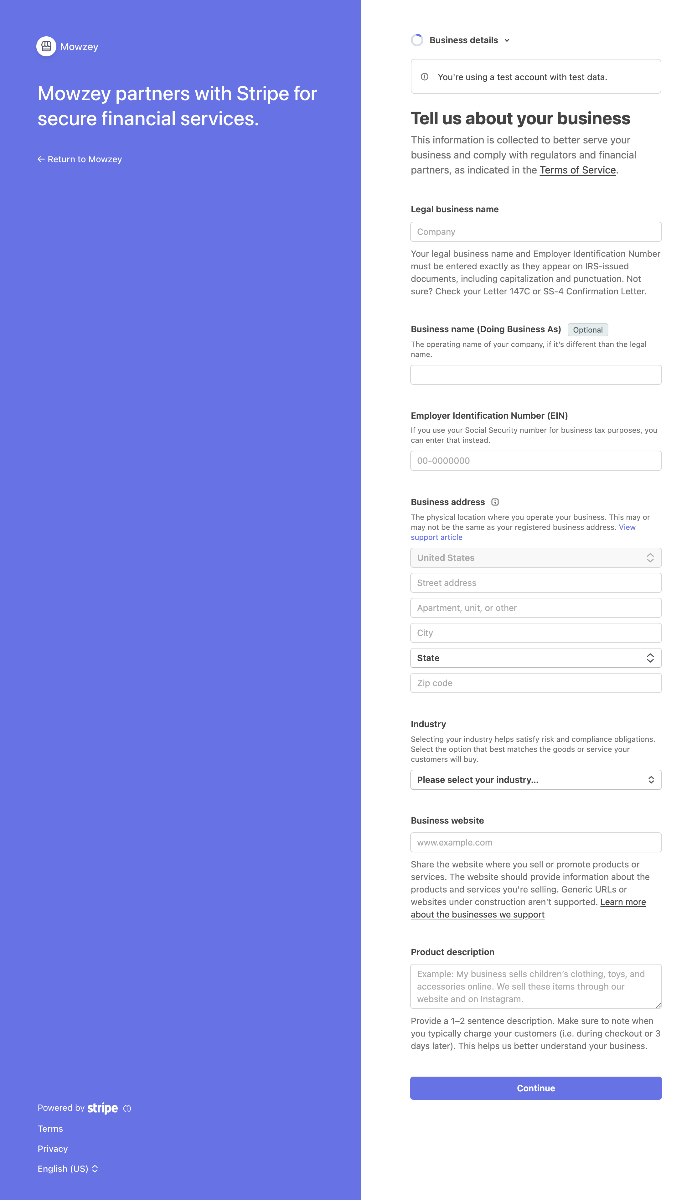
Once Stripe onboarding is complete, you can start billing customers immediately.
Create a route
Routes are the heart of Mowzey. They help you organize your clients geographically and optimize your driving time. Here's how to create your first route:
- Navigate to the Routes tab in the main menu
- Click Create New Route
- Give your route a name (e.g., "Monday - North Side")
- Select the clients you want to add to this route
- Click Optimize Route to arrange stops in the most efficient order
- Review the map and adjust if needed
- Save your route
Pro Tip
You can create multiple routes for different days of the week or different service areas. As you add more clients, you can easily reassign them to different routes.
Connect payments
One of Mowzey's most powerful features is instant billing. With Stripe connected, clients are automatically charged the moment you complete their service. Configure how it works:
- Go to Settings → Billing & Payments
- Choose your default payment terms (instant, net 7, net 30, etc.)
- Enable or disable instant charging per service type
- Send invite links so existing clients can save a card on file
Once configured, you can send payment links to clients, set up recurring billing for subscription services, and track all your payments in one place.
What's next?
You've completed the basic setup. Here are some next steps to get even more out of Mowzey: